
How do I enter the wind and read the wind hold?
On the Calculate tab, type the wind's speed and the direction it comes from on the Wind card, then tap Calculate. The wind hold is in the Wind column of the Drop Table and in the Corrections & Reticle tab, with an arrow that points into the wind.
The steps
The same on iPhone and Android. Calculating with a rifle of your own takes Pro or the 7-day free trial; the five sample rifles that come with the app calculate free.
-
Estimate the wind yourself. Live Weather fills temperature, pressure and humidity, but it never fetches wind. To judge speed and direction by eye, open the Wind Guide (More, then Reference & Practice): a free reference card with the Beaufort scale, mirage, flag and vegetation angle, and the clock method. A connected weather meter can also supply the wind.
-
Open the Wind card and type the wind. On the Calculate tab, find the Wind card. Type the speed into Speed (mph) (Speed (m/s) when your units are metric). Type the direction into Direction (°) as the clock position the wind comes from, relative to where your rifle points, not a compass bearing: 0° (12 o’clock) is a headwind, 90° (3 o’clock) a full-value wind from your right, 180° (6 o’clock) a tailwind and 270° (9 o’clock) a full-value wind from your left.
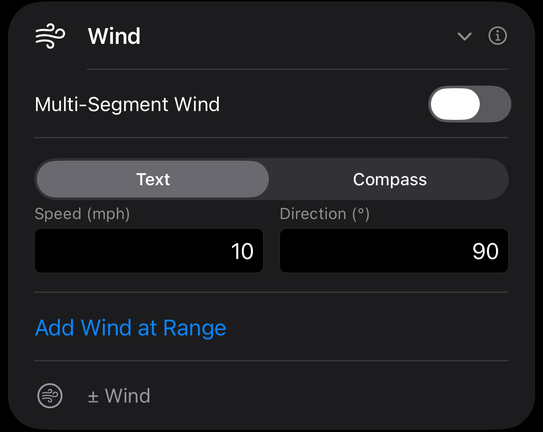
The Wind card: Multi-Segment Wind, the Text and Compass input modes, Speed and Direction, Add Wind at Range, and ± Wind. -
Or set the direction on the dial. Switch Input Mode from Text to Compass to draw a wind dial above the same two fields. Drag round the dial to set the direction, and the dial writes the wind in one line, such as 10 mph · From 3 o’clock · 90°. The fields under it stay for exact numbers. If the dial says Compass off, the phone has no usable compass reading and the ring holds still; the dial still sets the wind.
-
Tap Calculate and find your range. Open the Drop Table tab. In the row for your range, the Wind column (headed Wind MOA or Wind MIL, whichever unit you use) is the hold that cancels the wind drift. Its arrow points into the wind: hold that way. A hold that reads zero shows no arrow.
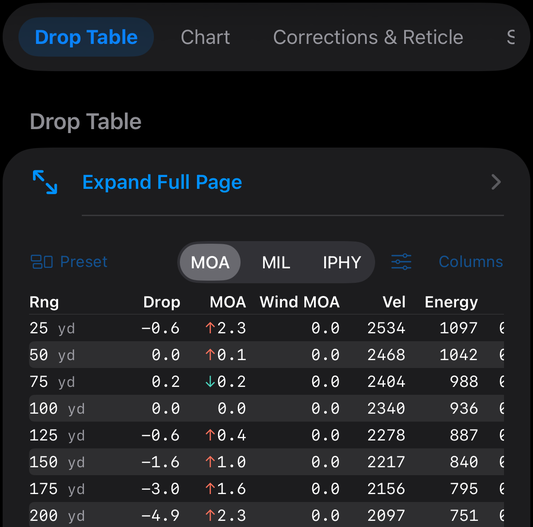
The Drop Table: the unit switch, Expand Full Page, and the range rows with each hold's arrow. -
Read the same hold in clicks. Open the Corrections & Reticle tab. Its first card is headed with the range it was solved at, and shows the windage correction as a number of clicks with a direction arrow, at the click value you set for your turret, with the elevation click count beside it.
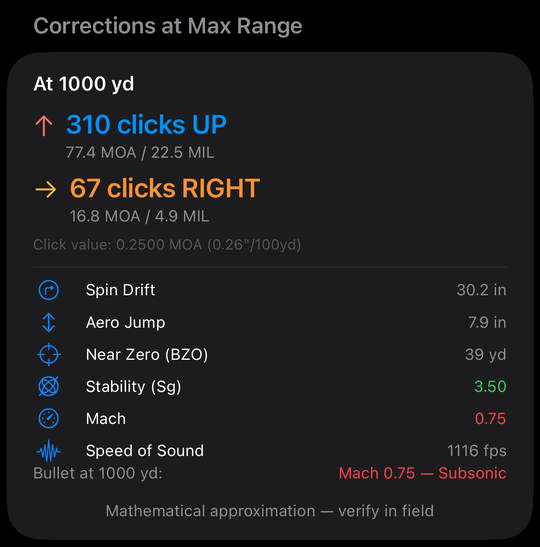
Arrows on the corrections clicks: 310 clicks UP (warm red arrow) and 67 clicks RIGHT (amber arrow), then spin drift, aero jump, near zero, stability, Mach and the speed of sound. -
If the wind changes along the way, add legs. Switch on Multi-Segment Wind for three winds, Near (0 to 200), Mid (200 to 600) and Far (600 and beyond), in yards or meters, each with its own speed and direction. Or tap Add Wind at Range to add one more wind that starts at a range you set.
-
If you are unsure of the wind, bracket it. Tap ± Wind, switch on Enable Wind Bracketing, and set Low Wind and High Wind. The Calculator then solves three times, at the low, the entered and the high wind, and the Corrections & Reticle tab adds a Wind dial range (± wind bracket) of clicks instead of a single number.
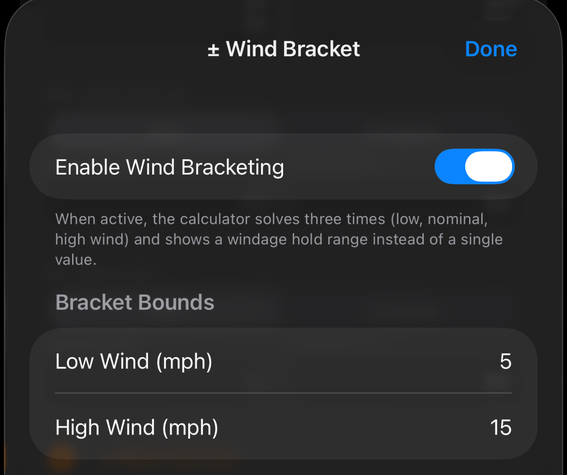
The ± Wind Bracket sheet: Enable Wind Bracketing, with the Low Wind and High Wind bounds.
If it went a different way
-
The wind hold reads zero or looks too small. Check the direction first. Only the part of the wind that blows across your line of fire makes a wind hold, so a wind from straight ahead (0°) or straight behind (180°) gives a Wind hold of zero.
-
You want to know how much wind your target forgives. Wind Uncertainty (More, then Shoot) takes a Range, Target Width, Wind Speed and Wind Direction as a clock hour with the target at 12 o’clock, for the Calculator’s load and weather. It answers GO (Holding center, this wind still hits.) or NO-GO (Holding center, this wind misses. Hold for it.) and shows the Wind bracket, the range of wind speeds that still hit. It is free on both phones. (Guide: Wind Uncertainty)
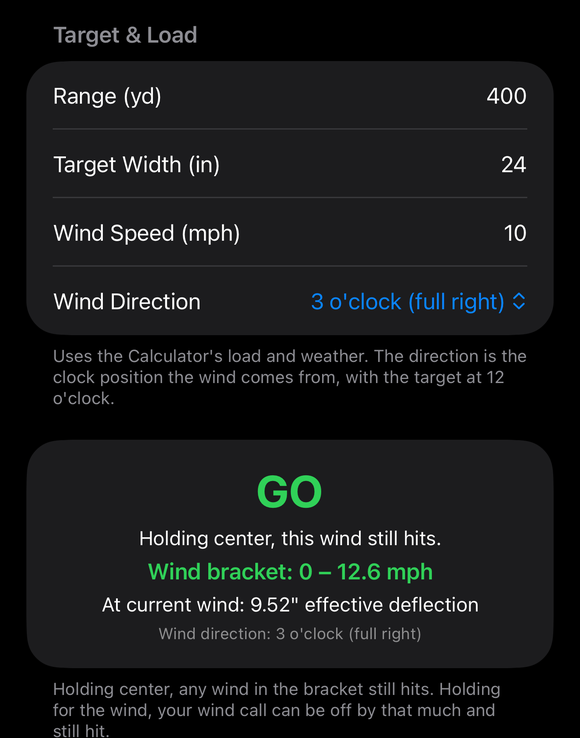
Wind Uncertainty: the green GO verdict, the Wind bracket and the deflection at the wind entered. -
You are on an Android phone. The Wind card has the same Input Mode, Add Wind at Range and ± Wind, plus a Quick 3-Segment button that sets up the three wind legs in one tap.
The wind hold is only as good as the wind you enter, and the app has no way to measure the wind at your target or between you and it. The app states its own limit on the Corrections & Reticle tab: Mathematical approximation — verify in field.
The full detail, with a picture of every screen, is in the Operator’s Guide: Wind inputs. More how-to answers. Questions? Contact support.