
How do I use a Kestrel or other weather meter for my conditions?
Connect the Kestrel in Bluetooth Devices, then touch and hold the weather button on the Calculate tab, choose Kestrel Live, and tap Apply to Calculator. The meter's temperature, pressure, humidity, altitude and wind speed go into the Calculator, and the Atmosphere card names the Kestrel as the source.
The steps
The same on iPhone and Android. This needs a Kestrel in your hands. The app’s list of weather meters has two entries, the Kestrel 5700 Elite and 5500 (over Kestrel LiNK) and the Kestrel DROP D1, D2 and D3, and no other make. Connecting a meter takes Pro or the 7-day free trial; the Devices list is open to everyone. With no Kestrel, tap Live Weather for the temperature, pressure and humidity at your location (it never fetches wind), or type the weather in.
-
Connect the Kestrel. In More, then Rifles & Gear, open Bluetooth Devices, a screen titled Devices. Turn the Kestrel’s Bluetooth on, tap Scan for Devices, and tap your Kestrel when it shows under Found. Without Pro or the trial the screen shows Connect and Name Devices with a lock and the line “Connecting a weather meter, rangefinder or chronograph by Bluetooth is part of Pro.”
-
Look at what the meter sends. Once connected, the Weather Meter — Live part of the screen lists the meter’s readings. A reading the meter does not send reads Not reported. A reading with an out-of-range value says it can’t be applied.
-
Open Kestrel Live from the Calculator. On the Calculate tab, touch and hold the weather button (Live Weather or Fetch Weather, depending on your layout). The menu lists Kestrel Live while a Kestrel is connected; with none connected the same place says Connect a Weather Meter.
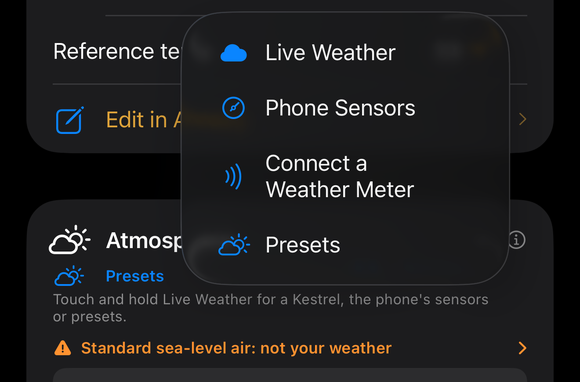
Touch and hold the weather button: Live Weather, Phone Sensors, Connect a Weather Meter, and Presets. This is the menu with no meter connected; with a Kestrel connected, Kestrel Live stands where Connect a Weather Meter is. -
Set the target direction. Point the Kestrel at your target, then tap Set Target Direction. It takes the meter’s own compass heading, so it needs a live reading. The screen then reads Target direction in degrees and draws the wind against it, with the target at 12 o’clock. Until you do this, the wind’s speed can be applied but its direction cannot.
-
Read the hold, then apply. Distance and Angle (°) start from the Calculator’s target, and the Hold shows your rifle and load at that distance in the meter’s air (in MOA, MIL and clicks). Tap Apply to Calculator. It writes the temperature, pressure, humidity, altitude and wind speed, and the wind direction once a target direction is set, then the Calculator solves again. The screen confirms with Applied — and the fields it wrote.
-
Check where the air came from. The Atmosphere card now carries a line such as Kestrel · applied with the time, and Kestrel · live with the seconds while the meter is sending. Tap the line to open Where the Air Came From, which names the source of each value. (Guide: Atmosphere inputs)
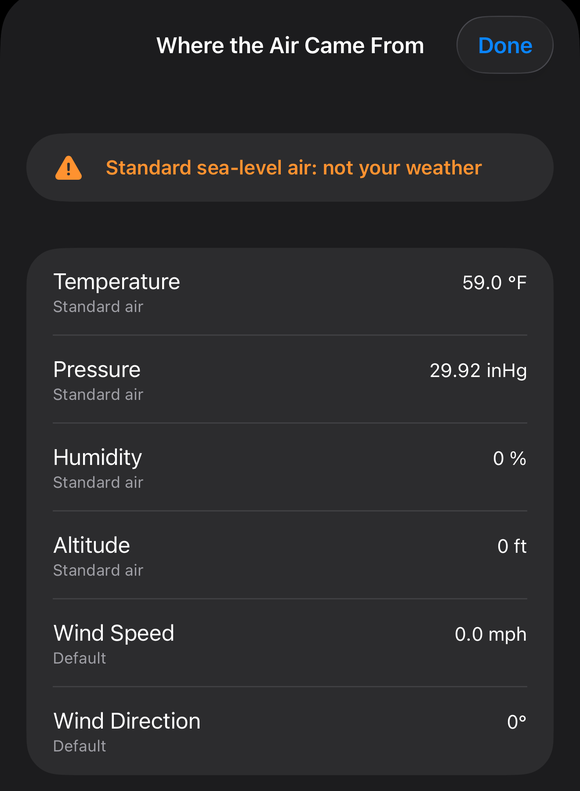
Where the Air Came From: temperature, pressure, humidity, altitude, wind speed and wind direction, each with its own source line. Here the air is still the standard day; after you apply a Kestrel, the lines name the Kestrel.
If it went a different way
- Apply to Calculator is grayed out. The button works only while the Kestrel’s data is live. Kestrel Live turns to Stale after 10 seconds without a reading and says Disconnected when the meter drops. Reconnect and look for Live.
- Set Target Direction will not work. It needs a live reading with a heading. Wait for Live and try again.
- The meter will not connect. The Devices screen carries the note “Some devices may have trouble connecting.” Its Tell Us Which Device button prepares an email that names the device, with nothing about your rifles, loads or location in it. You read it and send it yourself.
- Your weather meter is not a Kestrel. The app lists no other weather meter. Use Live Weather or Phone Sensors (both on the same hold menu), or type the conditions in.
- The weather changes after you apply. Applying writes a snapshot, and the Calculator does not follow the meter afterward. Tap Apply to Calculator again.
The Kestrel measures the air and the wind where it is held, not at your target or along the bullet’s path. The app applies what the meter reports at that moment and has no way to know what the wind does downrange.
The full detail, with a picture of every screen, is in the Operator’s Guide: Kestrel Live. More how-to answers. Questions? Contact support.