How do I use my reticle's marks to hold for a shot?
Put your reticle on your optic, open the Reticle Simulator with your rifle, set the range and wind, and turn on Show Hold Overlay: a red dot marks the point on your reticle to put on the target, with the numbers beside it. Turn on Show Trajectory Trace and each mark is tagged with the range at which the bullet reaches it.
The steps
The same on iPhone and Android. The Simulator is free with every reticle and every target. Its rifle list offers None and the five sample rifles free; your own rifles need Ballistics Pro or the 7-day free trial. The numbers in the pictures are examples.
-
Give your optic its reticle. In the Armory, tap your optic and tap Reticle. Select Reticle opens on Recommended for this optic. Turn on Show all brands, or type in the search box, to find any other reticle.
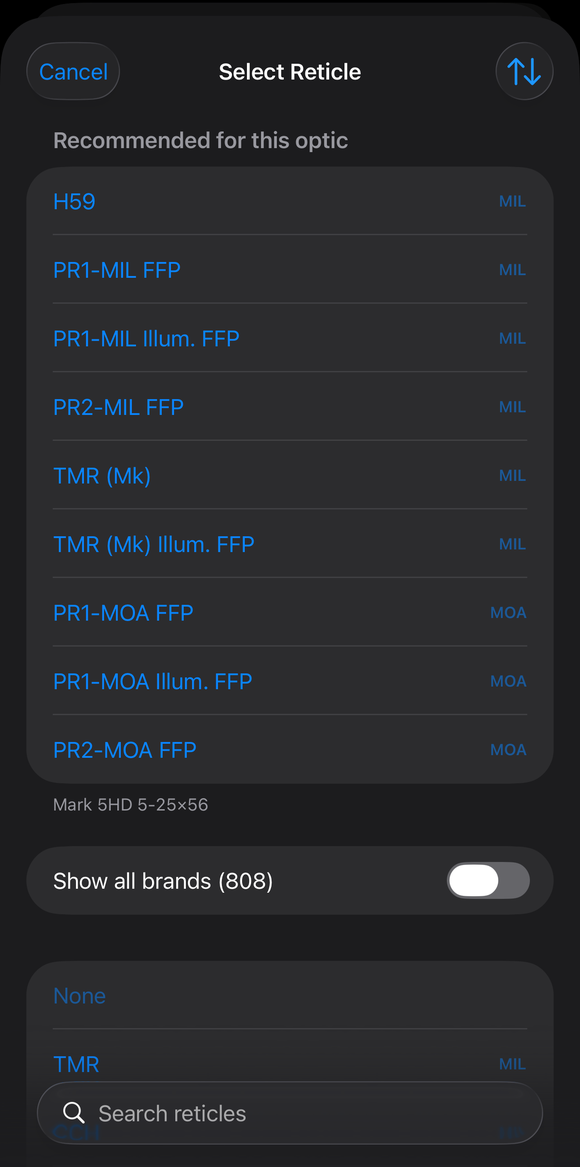
The Select Reticle list: Recommended for this optic, a Show all brands switch and a search box. -
Open the Simulator with your rifle. Tap the Simulator tab, or go to More, then Shoot, then Reticle Simulator. Tap the settings button at the bottom right, open Setup, and under Profile choose your rifle. The Simulator then shows that rifle’s reticle. With no rifle chosen, a banner says “No rifle profile — holdovers not shown. Tap to choose one.”; tap it to open Setup.
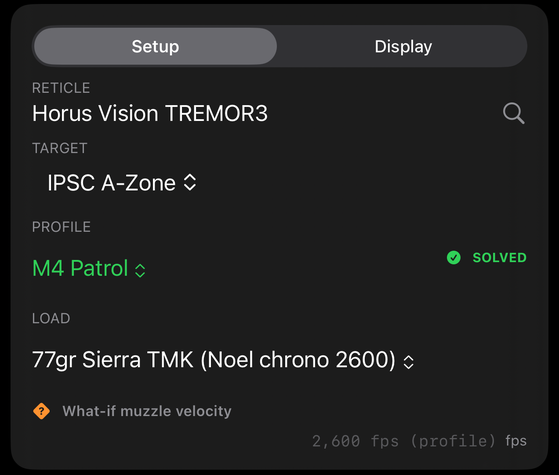
The Setup tab: the reticle, the target, the profile, the load and What-if muzzle velocity. -
Set the range and the wind. Tap the Range chip and the Wind chip under the picture and move the sliders. Touch and hold a chip to type an exact value. The Simulator starts from the Calculator’s weather and wind.
-
Read the hold. Turn on Show Hold Overlay, either the round button down the left edge or the switch in the Display tab. A red dot marks the point on your reticle to put on the target at that range. A pill beside it gives the numbers, for example “↓8.2 →1.7 MOA”. Each arrow points from the crosshair to the mark: ↓ means the mark is below the crosshair, → means it is to the right. The numbers are in the Angular Unit you set in Settings; when your reticle is marked in the other unit, its own numbers follow in smaller type.
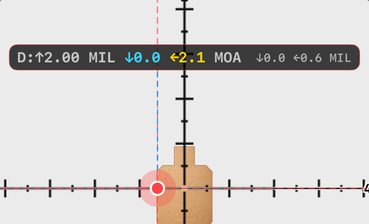
The hold: a red dot on the reticle and a pill with the elevation and windage in your Angular Unit, then the reticle's own unit smaller. -
Tag the marks with their ranges. Turn on Show Trajectory Trace. Each mark of the reticle is then tagged with the range at which the bullet reaches it, matched to the nearest 25 yd (or 25 m) row. A tag is drawn only where it has room.
-
Check several ranges at once. Turn on Holds at Ranges, either the round button down the left edge or the switch in the Display tab. A labeled dot appears for each range you pick, with the range and its elevation and wind holds. Pick the ranges there by Steps (Start, End and Increment) or as a typed List, such as 100; 300; 500. Tap a dot to make its range the Simulator’s range.
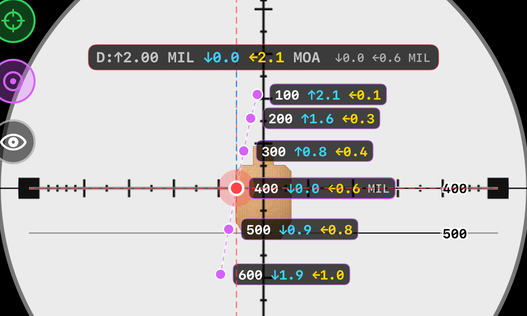
Holds at Ranges on: a labeled dot for each range you pick, each label giving the range and its holds. -
Start from your real shot. On the Calculate tab, open the Corrections & Reticle tab and find Reticle Holdover. Tap See it in the Simulator to open the Simulator on that exact shot: your rifle, load, range and air, with the target pinned to the hold. Guide: Reticle holdover overlay describes the plot above that button.
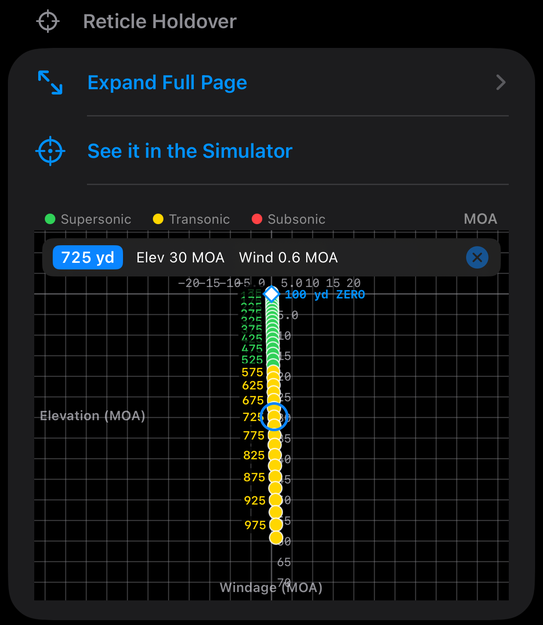
The Reticle Holdover plot on the Corrections & Reticle tab, with Expand Full Page and See it in the Simulator.
If it went a different way
- You dial your turret for the range. Turn on Auto-Dial Turret. It sets the elevation turret, in whole clicks, to the dial for the range on screen, so the target sits on the crosshair up and down, and the trace tags each mark with the range it hits at that dial. The pill adds a “D:” figure for what is dialed and shows what is left to hold. The windage is still yours to hold.
- You want to read the drop on the marks under the target. Tap Pin target to hold (a round button at the right of the picture; touching and holding the picture also opens the Aim menu with it). The target’s center is then drawn on the hold dot at every range, wind and zoom.
- The hold is off the glass. A hold that falls off the glass shows a red arrow at the rim of the picture.
- See it in the Simulator is not there. The button is offered only for a saved rifle and load, and only when the Simulator can draw the same shot: no unsaved edits, a level shot with no cant, Coriolis off, one steady wind of no more than 50 mph, and the 3DOF or 4DOF solver.
On a second focal plane (SFP) optic the marks are true at one magnification only. When your zoom is not that power, the Simulator shows a line such as “SFP ⚠ … % off at …x (ref …x)”, and the REF slider sets the power the marks are true at. The Simulator draws the reticle you chose, so check that it is the reticle on your scope before you rely on a mark.
The full detail, with a picture of every screen, is in the Operator’s Guide: Reticle Simulator. More how-to answers. Questions? Contact support.