
How do I switch between MIL and MOA and set my turret's click value?
Switch the unit your holds are shown in with the MOA, MIL and IPHY switch above the Drop Table, or under Settings, System, Angular Unit. Then set what one click is worth on your optic's own page, Edit Optic, with its turret switch and Click Value.
The steps
The same on iPhone and Android. Two things are set separately: the unit your holds are shown in, and the unit and size of one click on your scope. Set both.
-
Choose the unit your holds are shown in. After you tap Calculate, open the Drop Table tab and tap MOA, MIL or IPHY on the switch above the table. The hold column and the wind column switch to that unit, and the wind heading names it (Wind MOA, Wind MIL). This sets the same Angular Unit you find under Settings, System. Guide: System & angular units
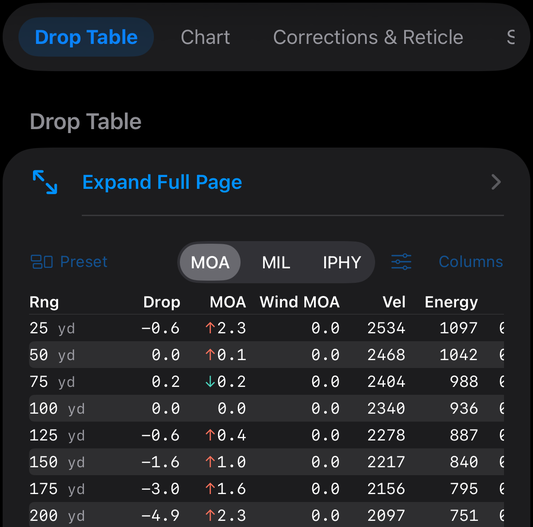
The Drop Table: the MOA, MIL and IPHY switch, Expand Full Page, and the range rows with each hold's arrow. -
Open your optic’s page. On the Calculate tab, tap Optic on the bench, then Edit in Armory. The Edit Optic page opens. (Plain iron sights have no optic page: fit your scope from the cards under the bench first.) You can also reach it from the Armory tab: open the Optics shelf and tap your scope’s card.
-
Set the turret unit and the click value. On Edit Optic, tap MOA or MIL (MRAD) on the turret switch, then type your turret’s click into the box under it, Click Value (MOA) or Click Value (MIL/MRAD). Picking the other unit puts that unit’s usual click in the box (0.25 MOA or 0.1 MIL), so type your own after you switch. Save waits until the click value is above zero. Tap Save.
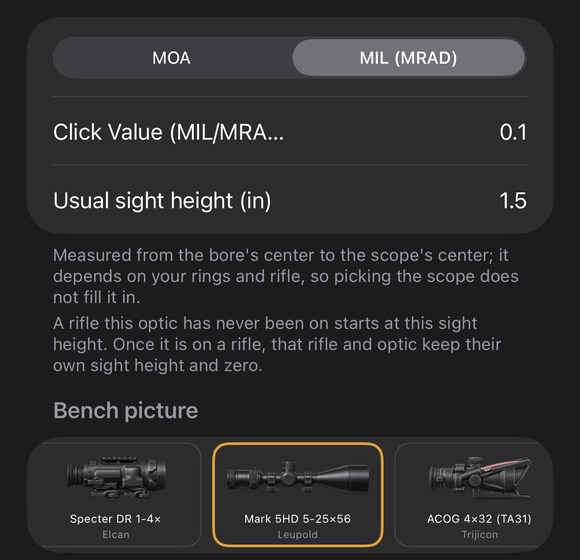
The lower part of Edit Optic: the MOA / MIL (MRAD) switch, Click Value, Usual sight height with its note, and the Bench picture strip. -
Check it where the clicks are counted. Tap Calculate, open the Corrections & Reticle tab, and look at the click counts and the Click value line at the bottom of the clicks: it names the unit and the click size the app used. They should match your turret.
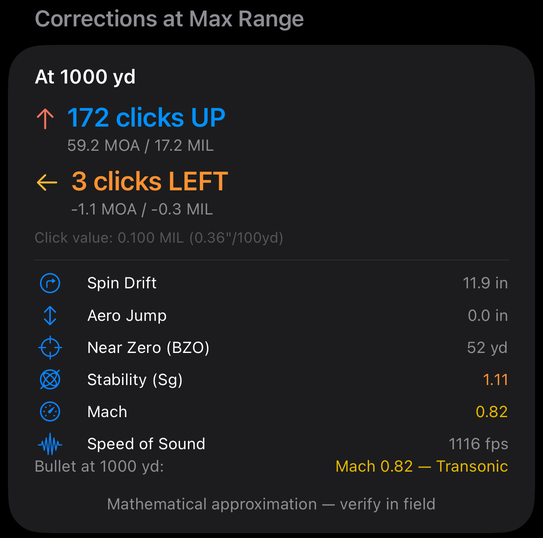
The Corrections & Reticle tab, first card: the corrections at maximum range with their clicks, then spin drift, aerodynamic jump, near zero, stability, Mach, and the speed of sound. -
Set the app-wide default for when no rifle is loaded. Open Settings from the ••• menu on the Calculate tab. Under System, set Angular Unit to MOA, MIL (MRAD) or IPHY. Under Turret, the click value field follows that unit, Click Value (MOA), Click Value (MIL/MRAD) or Click Value (IPHY); type your turret’s click there. A loaded rifle’s own turret unit and click value take over wherever a screen has a rifle.
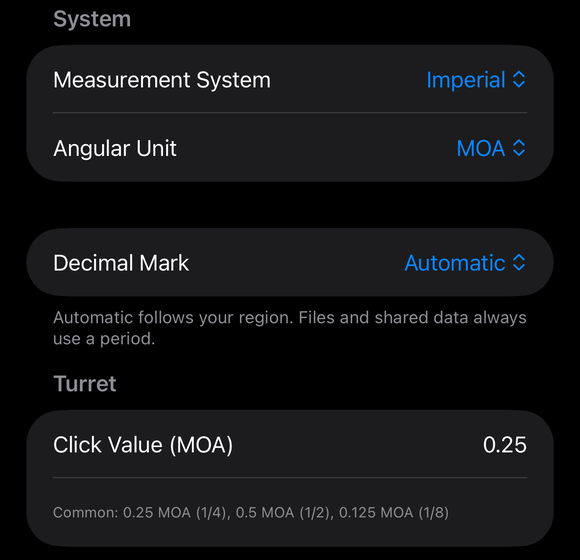
System (Measurement System and Angular Unit), Decimal Mark, and the Turret click value.
If it went a different way
- Your clicks are not 0.25 MOA or 0.1 MIL. Type the value marked on your turret. The app lists common ones under the box: for MOA, 0.25 (1/4), 0.5 (1/2) and 0.125 (1/8); for MIL, 0.1 (most MIL turrets) and 0.05.
- You count in IPHY. IPHY is inches per 100 yards. Choose IPHY on the Drop Table switch or under Angular Unit, and the Settings box becomes Click Value (IPHY): type the increment marked on your turret, in inches per 100 yards. Edit Optic offers only MOA and MIL (MRAD), so set an IPHY scope there as MOA.
- A new rifle. Step 4 of the guided setup, Zero & Scope, asks for the same two things: the turret switch and Click Value.
- You are not sure one click moves the bullet by the number you typed. Turret Tracking Test (More, then Zero & Truing) checks it against real shots, and Turret tracking on the optic part of the bench sets how your turret tracks as a percent. (Guide: Rifle editor)
The full detail, with a picture of every screen, is in the Operator’s Guide: Turret click value. More how-to answers. Questions? Contact support.