
How do I enter my muzzle velocity and account for temperature?
Type the average speed from your chronograph into the load's Muzzle velocity box, then set Reference temp to the temperature you measured it at and Temp sensitivity to how much your powder's speed changes per degree. If you do not know the sensitivity, Work It Out From Two Readings figures it from two chronograph averages taken on days with different temperatures.
The steps
The same on iPhone and Android, with the one difference noted in step 5. Typing and saving a load is free. Calculating with your own rifle needs Ballistics Pro or the 7-day free trial; the five sample rifles calculate free. The numbers below are examples.
-
Open the load’s speed boxes. In the Armory, open the load on the rifle’s Ammo shelf; the page is titled Ammo, and its Velocity section holds the speed boxes. On the Calculate tab you reach the same boxes by tapping Ammo in the loadout.
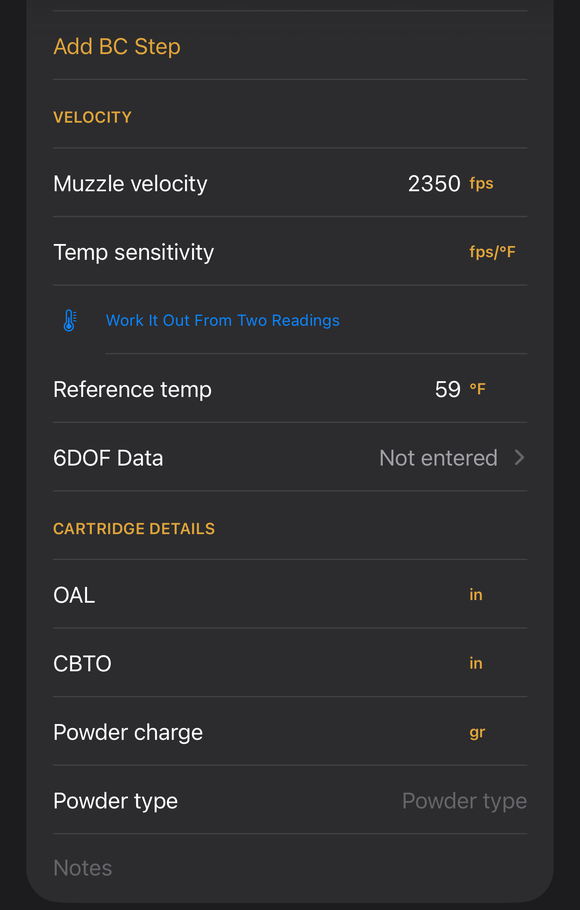
The bottom of the Ammo page: Muzzle velocity, Temp sensitivity and Reference temp. -
Type the average speed. Enter the average from your chronograph in Muzzle velocity. It is in feet per second, or meters per second if Settings, System, Measurement System is set to Metric. The app saves it when you leave the box.
-
Optional, Pro: take the average from a string. If you shot a string over a chronograph, open More, then Zero & Truing, then Chrono String Statistics. Capture the string, tap Use as muzzle velocity, and answer Set muzzle velocity to …? with Use (or Use anyway if the app warns that the number looks off). Then, under Where should this go?, tap Save to and the load’s name. Have the right rifle and load on the loadout first. See Guide: Chrono String Statistics for the numbers it shows.
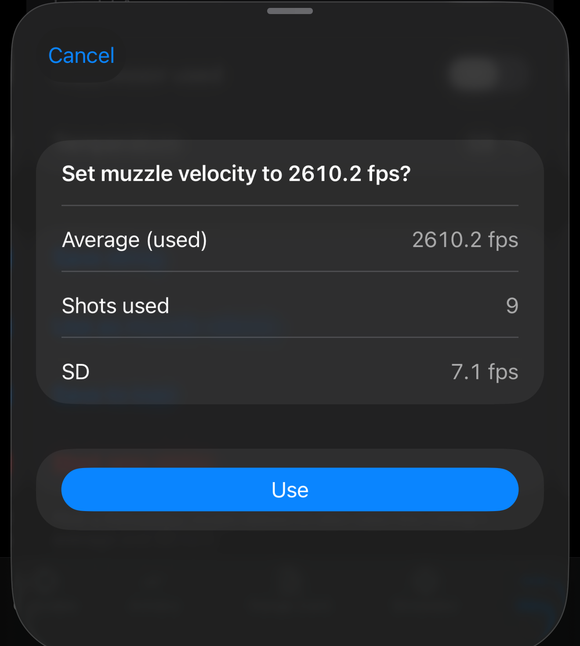
Use as muzzle velocity opens a sheet that asks Set muzzle velocity to ...?, showing the average, the shots used and the SD, with Cancel and Use. -
Set Reference temp. This is the air temperature the speed in step 2 was measured at. Type it in Reference temp. If you leave it empty, the app treats the speed as measured at the standard 59 °F (15 °C).
-
Set Temp sensitivity. This is how many feet per second (meters per second on Metric) your powder gains per degree of warming. Type it in Temp sensitivity if you know it. If not, tap Work It Out From Two Readings, enter the average speed and the temperature for two chronograph days, and tap Use This Sensitivity. The two temperatures must be at least 10 °F (6 °C) apart. On Android that button is on the load’s Armory page and in the full rifle editor, not on the Calculate tab’s loadout.
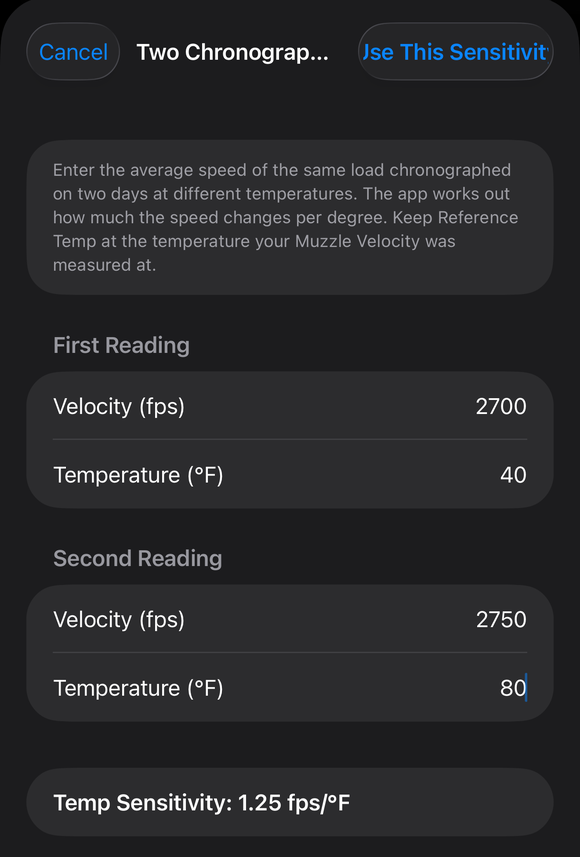
Two Chronograph Readings: First Reading and Second Reading, each with a velocity and a temperature, then Use This Sensitivity. -
Calculate in today’s air. Set the Atmosphere card, or use Live Weather, and calculate. The app adds Temp sensitivity times (air temperature minus Reference temp) to the speed you typed. A note with the results says what it did, in the form ”… fps from Temp Sensitivity: (air temperature) vs. (reference temp) reference temp”.
If it went a different way
- You have no chronograph. With Muzzle velocity empty, tap the button that reads Estimate … fps from followed by the cartridge’s name. The app fills in the cartridge’s typical published velocity and says “Estimated from the cartridge’s typical published velocity. Chronograph your load for accuracy.” If the load’s bullet is not that cartridge’s, it says “This cartridge’s bullet is not this load’s. Pick the matching cartridge to estimate a muzzle velocity.”
- Work It Out From Two Readings refuses the numbers. “The two temperatures need to be at least 10 °F apart.” means the days were too close in temperature; “That is more than any powder changes. Check the two readings.” means a speed or temperature was mistyped.
- A Check this: warning appears with the results. The app warns when the speed it used looks wrong, for example “Check this: the temperature correction changes the muzzle velocity from … to … Check Temp Sensitivity and Reference Temp.” Fix the box it names and calculate again.
- You switched on Use Density Altitude and typed a density altitude by hand. There is then no real air temperature to compare with Reference temp, so the app does not correct the speed.
With no Temp sensitivity saved, the speed stays as you typed it at every temperature. The correction is a straight line: the same change in speed for every degree. Two readings give a sensitivity for the temperatures you shot at, so check it against a chronograph reading at a very hot or very cold temperature.
The full detail, with a picture of every screen, is in the Operator’s Guide: Load editor. More how-to answers. Questions? Contact support.