Which BC and drag model should I use for my bullet?
Pick your bullet from the Bullet Database or the load's Choose Bullet list, and the app fills in the maker's BC together with the drag model that BC was published for. If your bullet is not listed, type the BC from the box or the maker's website and set Drag Model to the model the maker states it for, because a BC only works on the drag model it was measured against.
The steps
The same on iPhone and Android. Picking a bullet and saving a load is free. Calculating with your own rifle needs Ballistics Pro or the 7-day free trial; the five sample rifles calculate free. The numbers in the pictures are examples.
-
Find your bullet. Open the load’s page in the Armory (tap its card on the Ammo shelf) and tap Choose Bullet; it reads Change Bullet once the load has a bullet. Pick a caliber, then a brand, then the bullet, or just type words in any order, such as smk 175. You can also go to More, Rifles & Gear, Bullet Database, and tap a row; the app asks Where should this go? and you choose Save to and the load’s name.
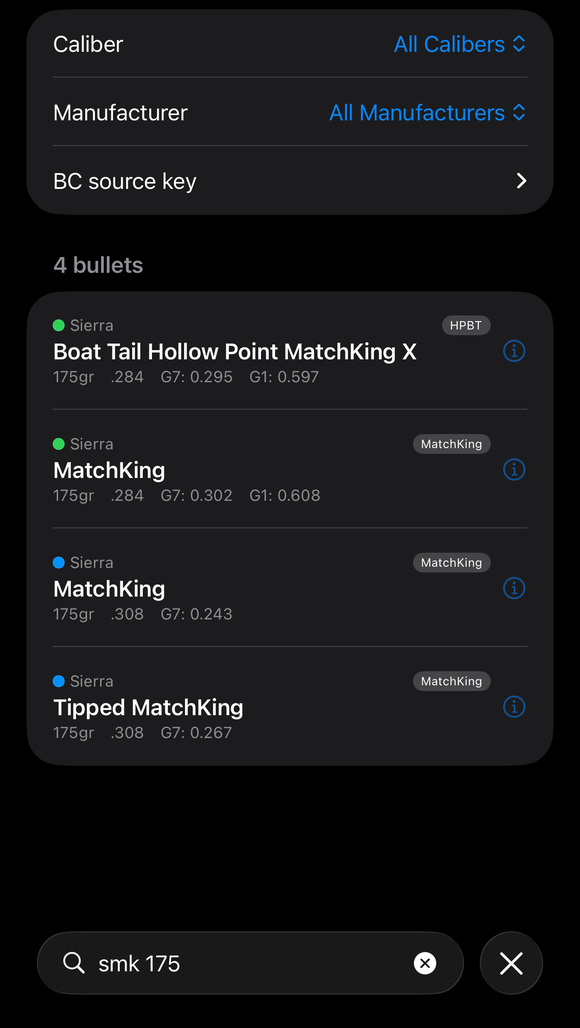
Searching smk 175 in the Bullet Database finds the four Sierra 175-grain MatchKing bullets, each with a colored dot for where its BC came from. -
Check where the BC came from. In the Bullet Database each bullet has a dot: green Manufacturer — verified, blue Manufacturer — sourced, yellow Your numbers, gray Unverified. Tap the BC source key row to see them, or the (i) button on a bullet for its BC Source and a link to the maker’s page. A bullet with no published BC shows an orange No BC. The load’s own bullet picker does not show the dots.
-
Let the pick fill the numbers. Choosing a bullet sets its weight, diameter, length, BC and Drag Model together. If the maker publishes a G7 BC, the load gets that BC with G7; otherwise it gets the G1 BC with G1.
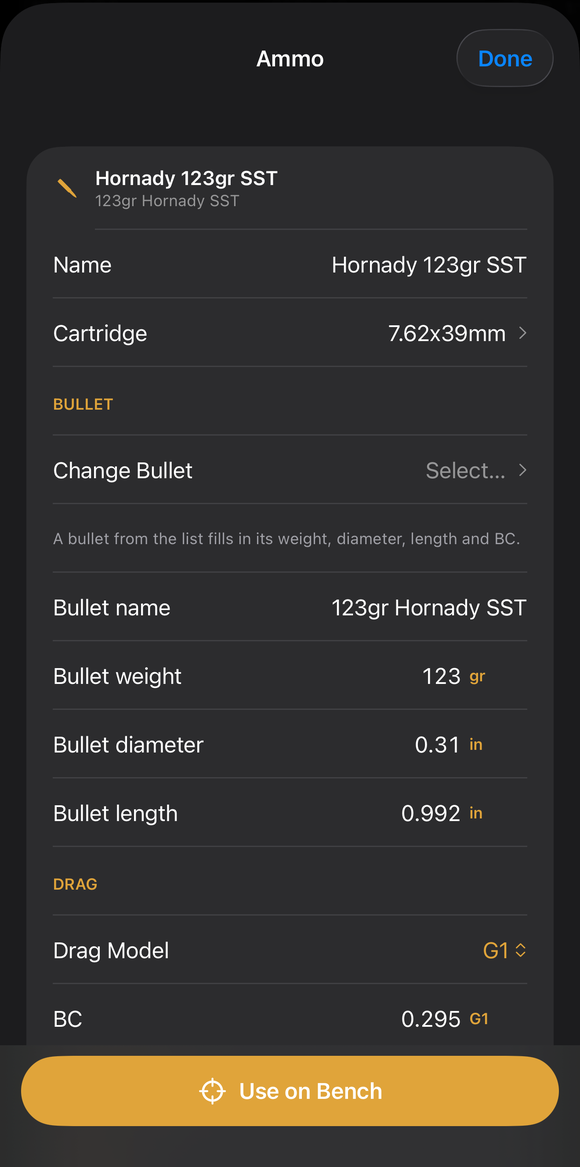
The load's page: Name, Cartridge, Change Bullet, the bullet's weight, diameter and length, and the Drag Model menu with its BC. -
Change the model only through Drag Model. A BC belongs to one drag model, so do not type a G7 BC while the load says G1. Tap Drag Model and choose from the list. For a bullet from the database, Published BC lists the models the maker published a BC for, and Requires your own BC lists the rest. Choosing a model with a published BC fills in that BC; choosing one without leaves the BC empty, with a note such as “Switched to G1. A BC belongs to one drag model, so this load has no G1 BC to use — enter one before solving.”
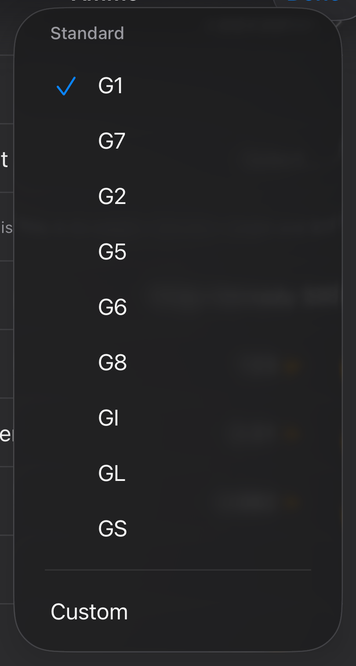
The Drag Model menu on a load: G1 (checked), G7, G2, G5, G6, G8, GI, GL and GS, then Custom. -
If your bullet is not listed, enter it yourself. On the load’s page, type the weight, diameter and length, and the BC in the BC box, then set Drag Model to the model the maker states that BC for. If you pick a bullet that has no published BC, the app says No published BC for this bullet. Use Anyway sets the BC to 0, and you must type your own BC before a solve gives correct numbers.
-
Check the BC against real drops. The published BC is the maker’s number. To test it against what your rifle does, shoot at known distances and use BC Back-Calculator (More, Zero & Truing). It gives a corrected BC, and Apply to Calculator asks Where should this go?. The BC Back-Calculator is free on the five sample rifles and needs Pro or the trial on your own.
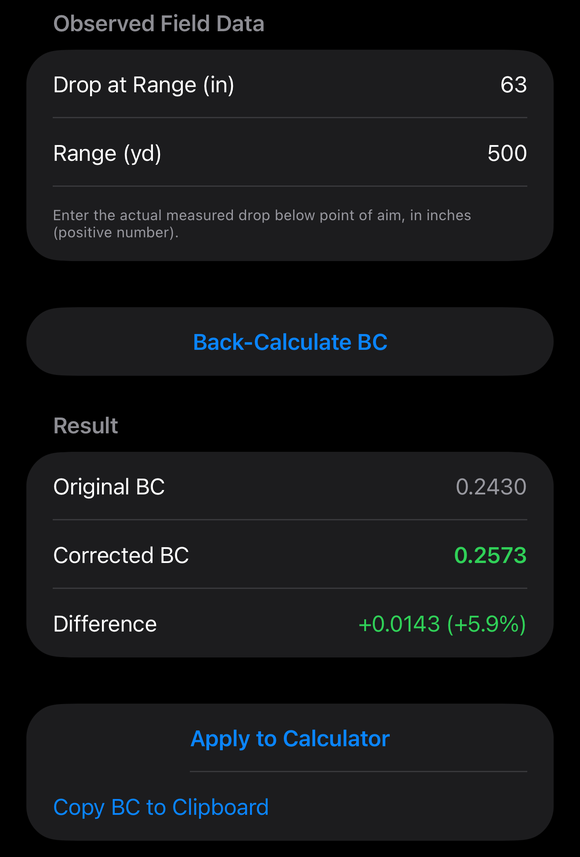
A BC Back-Calculator result: Original BC, Corrected BC and the difference, with Apply to Calculator and Copy BC to Clipboard.
If it went a different way
- The BC changes with speed. If you have BCs for different speed ranges, tap Add BC Step on the load and enter From velocity and BC for each band.
- An orange line says there is no published BC for the model. For example, “No published G7 BC for this bullet. Enter a G7 BC above, switch to G1, or attach a custom curve — otherwise the solve will be wrong.” Do one of the three things it says.
- You have a measured or custom drag curve. Custom in the Drag Model menu uses a curve instead of a BC. Measured and custom curves need Pro. Guide: Supported drag models lists all nine models and what each is for.
The database holds the maker’s published numbers. Your own rifle, load and air can give a different real-world BC, and the app cannot tell which, so test the BC against real drops (step 6) before you trust it at long range.
The full detail, with a picture of every screen, is in the Operator’s Guide: Bullet Database. More how-to answers. Questions? Contact support.