
My drop at the range does not match the app. How do I true it with real data?
Set the Calculator to the day's weather, shoot at a range well past your zero, and enter the range and the measured drop in Truing / Calibration. It returns a trued muzzle velocity or BC, which you then type into your load.
The steps
The same on iPhone and Android. Truing a rifle of your own takes Pro or the 7-day free trial; the five sample rifles that come with the app true free.
-
Bring the Calculator to the day’s conditions. Truing has no boxes for the rifle, zero, weather or wind: it reads them from the Calculate tab. Put the rifle and load you shot on the bench, then fill the Atmosphere card (tap Live Weather, or type the numbers) and the Wind card with what you had at the range.
-
Shoot at a range well past your zero. Aim at the center of the target with your turrets at your zero setting, fire from a solid rest, and measure how far the bullet struck above or below where you aimed. The app says an observation well past your zero pins the answer much better than one close to it.
-
Pick what to true. Each run trues one number, chosen under Truing Mode, Method: Muzzle Velocity, Ballistic Coefficient or Drop Scale Factor. Use Ballistic Coefficient when your muzzle velocity is confirmed on a chronograph, and Muzzle Velocity when it is not. Drop Scale Factor gives one multiplier for the whole drop table, and a load has no box to type it in, so choose it only to read the number. Guide: Chrono String Statistics turns a string of shots into a muzzle velocity first (Pro).
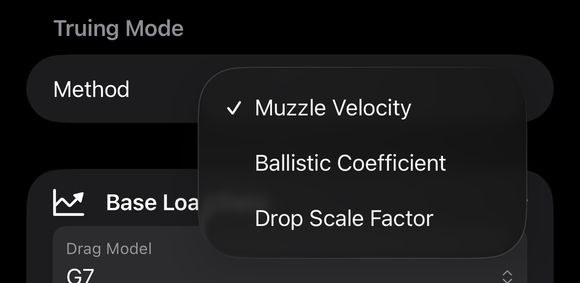
The Method menu under Truing Mode: Muzzle Velocity (checked), Ballistic Coefficient and Drop Scale Factor. -
Open Truing / Calibration. Tap More, then Zero & Truing, then Truing / Calibration. If you do not see it at the Basic app level, raise the level under Settings, App Level, or search for it. Base Load Data starts out holding the Drag Model, MV and BC of the load on your bench.
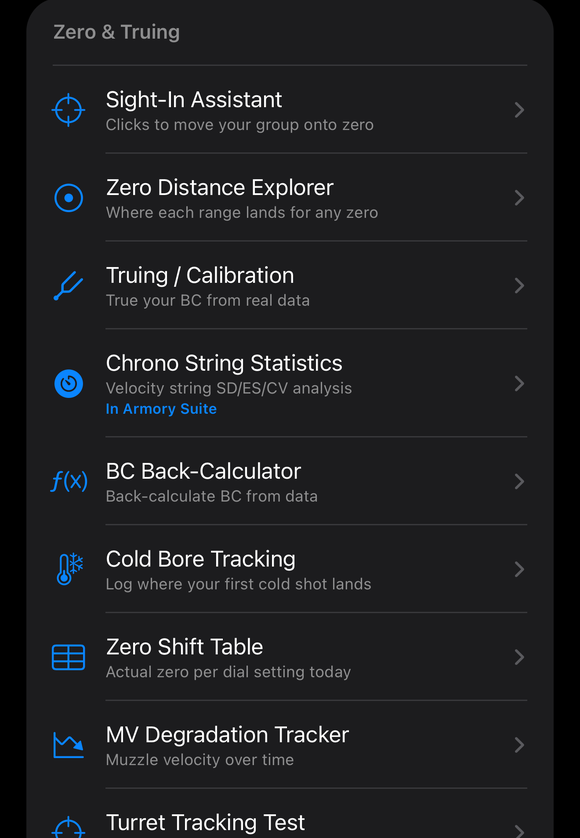
More, Zero & Truing: Sight-In Assistant, Zero Distance Explorer, Truing / Calibration, Chrono String Statistics, BC Back-Calculator and the other tools in that section. -
Enter what you measured. Under Observed Data, type the Range (yd) and the Observed Drop (in). A shot that struck below your point of aim is a negative number and one that struck above is positive. Then tap Compute Trued Value.
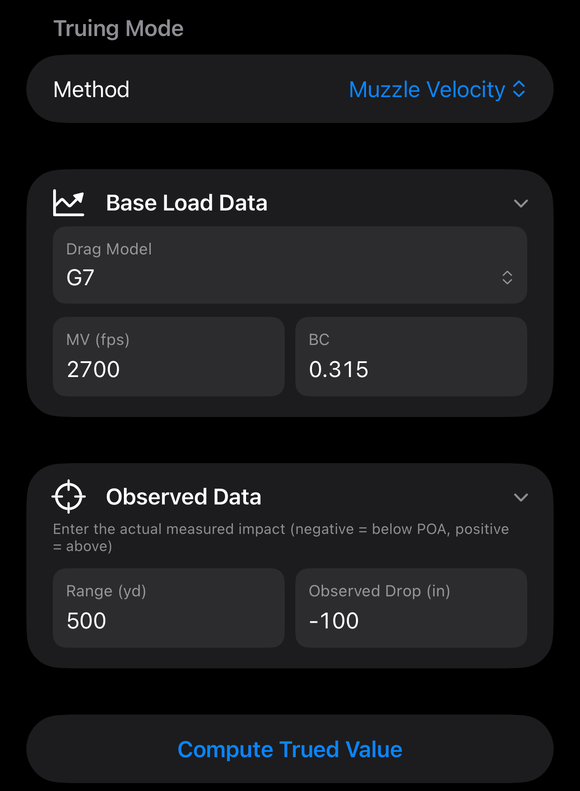
Truing / Calibration with Muzzle Velocity chosen: the Truing Mode card with its Method row, the Base Load Data card, the Observed Data card with range and observed drop, and the Compute Trued Value button. -
Read the result. Under Result the screen shows Original MV, Trued MV and the Change as a percent (Original BC and Trued BC for a BC run). It does not change your load.
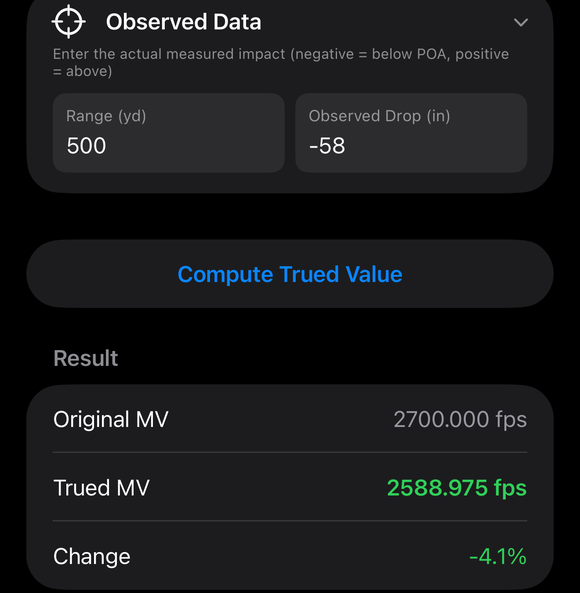
Muzzle Velocity truing result: Original MV, Trued MV and Change in percent. -
Put the trued number in your load. For a trued muzzle velocity, go to the Calculate tab, tap the Ammo part on the bench and type it into Muzzle velocity. For a trued BC, tap Edit in Armory in that same part and type it into BC on the load’s page. Then tap Calculate again with the same weather and wind, and check the Drop Table row for the range you shot against what you measured.
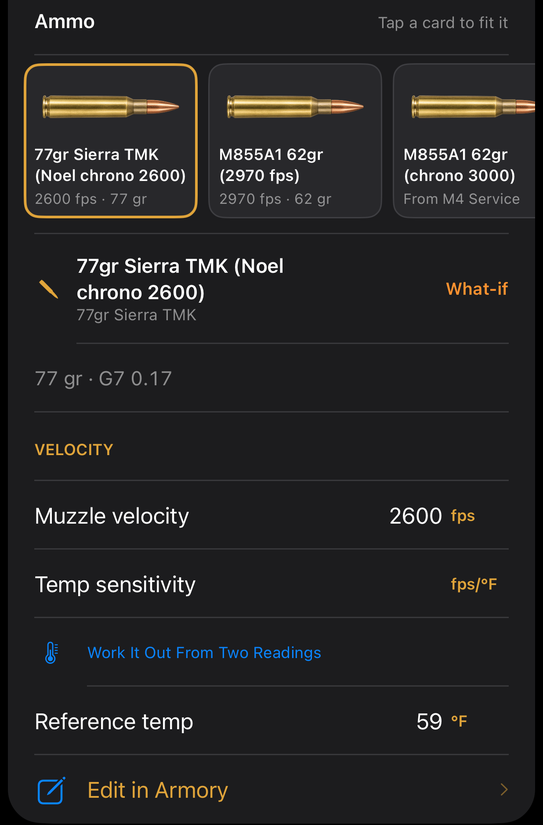
The Ammo part on the bench: the muzzle velocity, the temperature sensitivity, the reference temperature and Edit in Armory.
If it went a different way
- The screen says No trued value converged for this observed drop. Check the range, drop sign, and base load. Check that the range is the distance you shot, that a low impact is negative, and that the Base Load Data is the load you fired.
- A warning appears under the result. When the shot landed close to your zero, the app says the impact barely depends on what is being trued, so a small error in the measurement moves the answer a long way. Shoot again well past your zero.
- You want a BC straight from a drop. BC Back-Calculator, in the same Zero & Truing section, does this. Under Observed Field Data enter the Drop at Range as a positive number below your point of aim, tap Back-Calculate BC, and read Original BC, Corrected BC and Difference. Apply to Calculator then asks Where should this go? (Guide: BC Back-Calculator)
Truing fits one number to one measured impact, under the weather, wind and zero the Calculator held when you ran it. A single shot or group gives a single answer, so confirm the result at the range before you rely on it.
The full detail, with a picture of every screen, is in the Operator’s Guide: Truing / Calibration. More how-to answers. Questions? Contact support.